Interface guide
Earlier technical reference
This page is retained from earlier documentation and has not been fully revalidated for the public 2026.10.19 release. Its revision-specific links and examples may describe older or development behavior. Start with the current public-release user guide; do not use this page alone to select installation commands, image tags, or security settings.
The BURROW interface brings conversations, agent configuration, project tasks, retained evidence, and media generation into one operator console. This guide describes release 2026.10.10.4. Start by checking the agent and session: these determine which conversation and records you are viewing.
The runtime owns durable state. The browser presents API responses and live activity, and keeps some local preferences and conversation caches. A visible answer, an accepted job, and a verified result are different states; inspect the relevant run or evidence before treating work as complete.
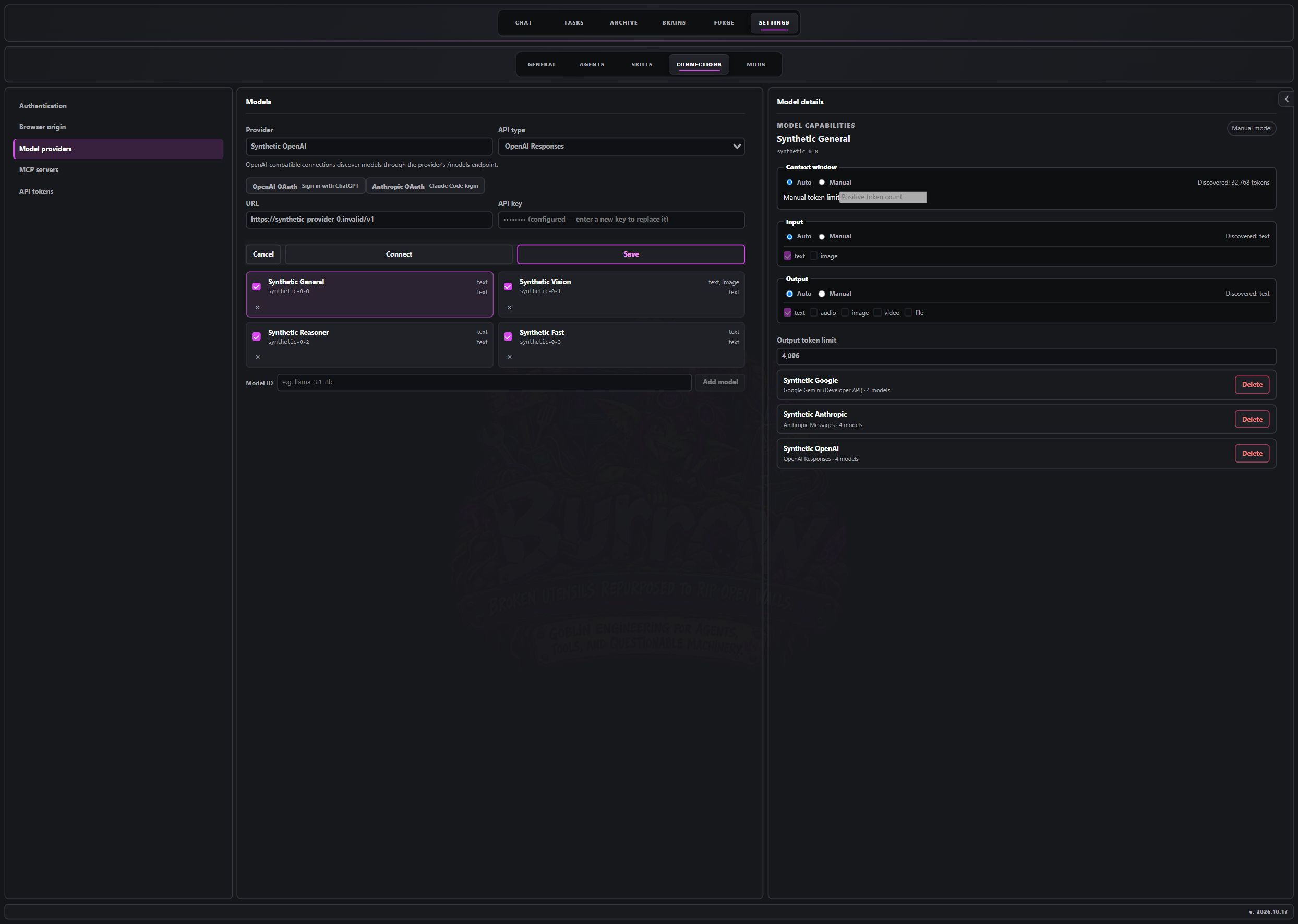
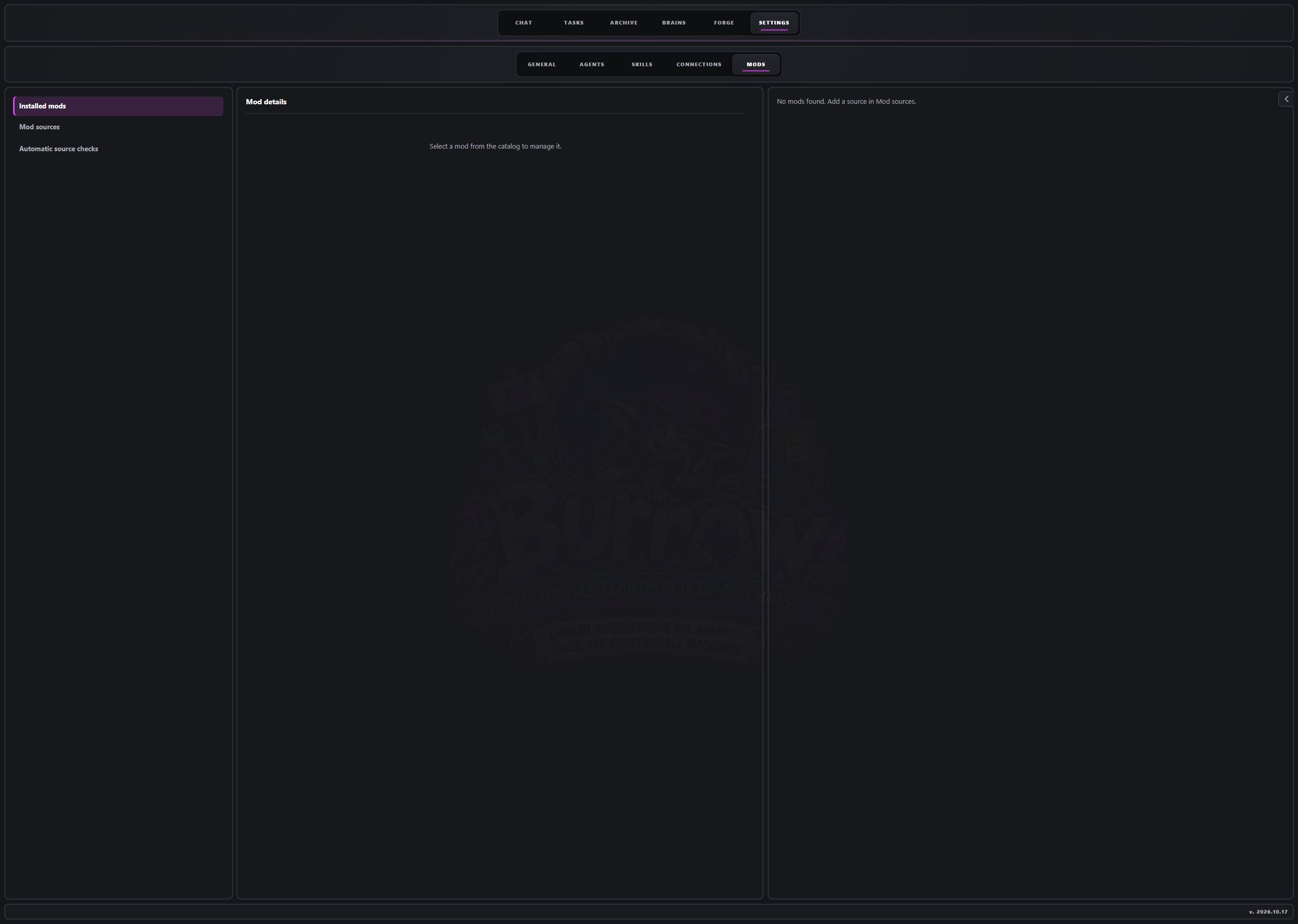
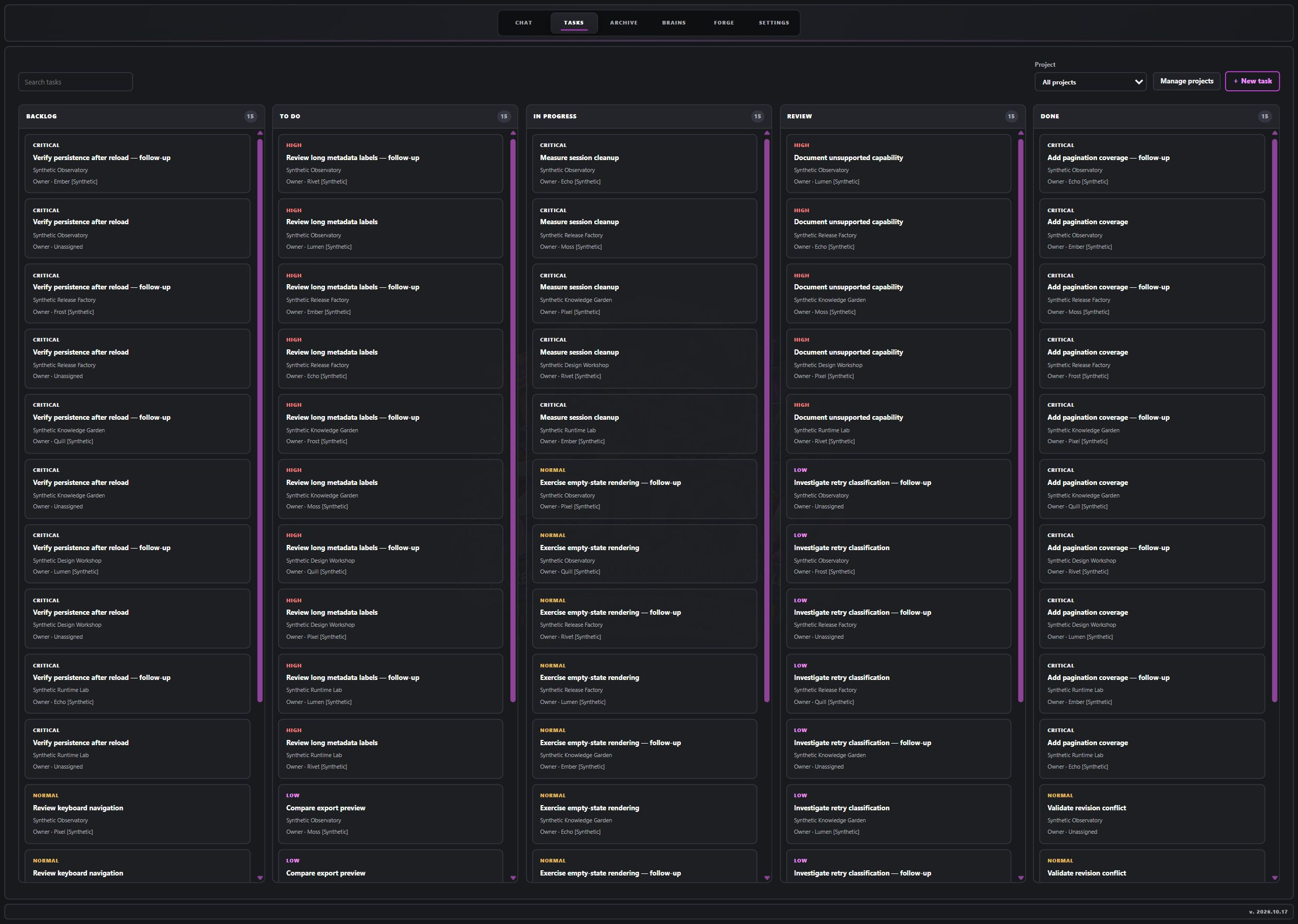
Development screenshots
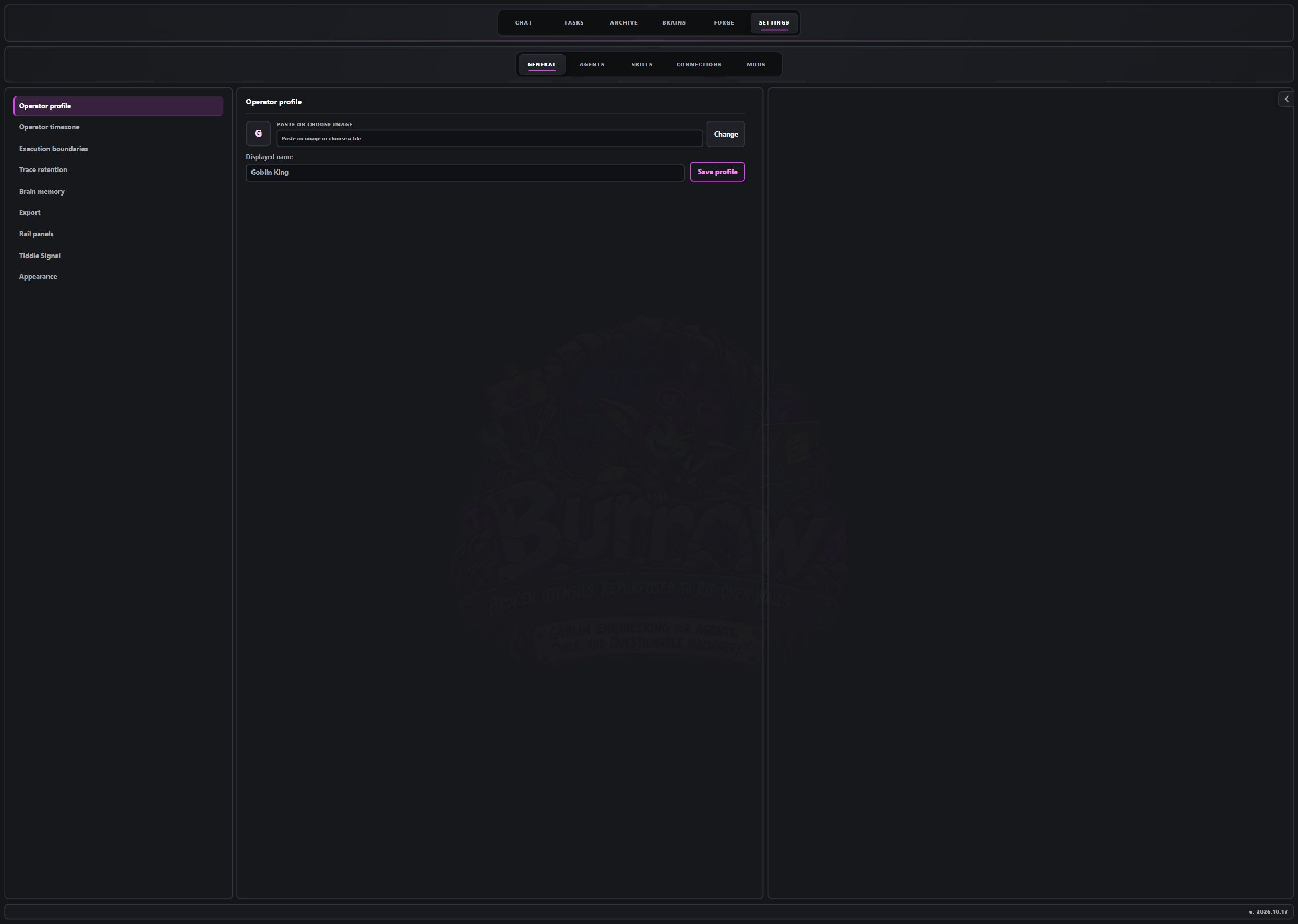
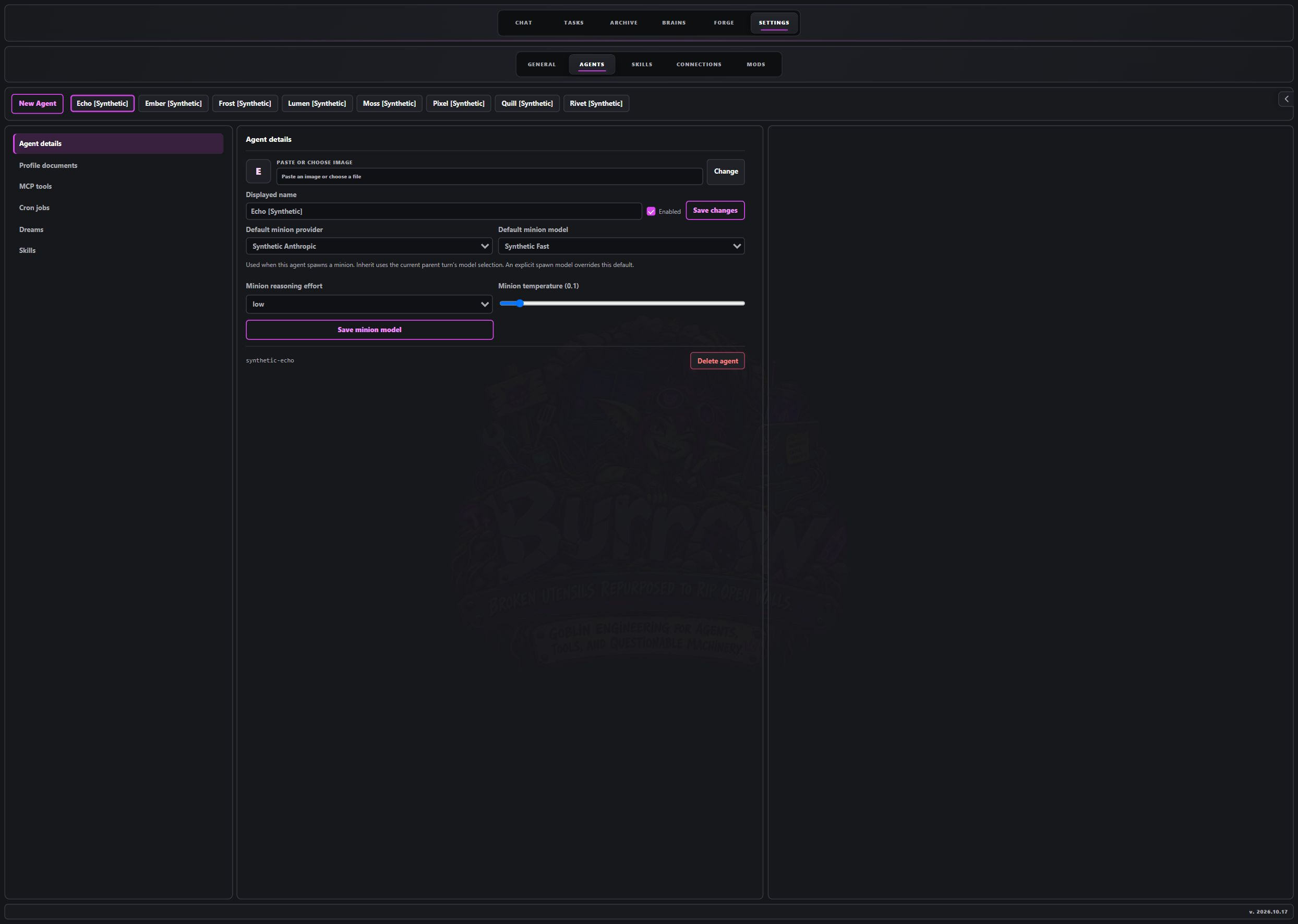
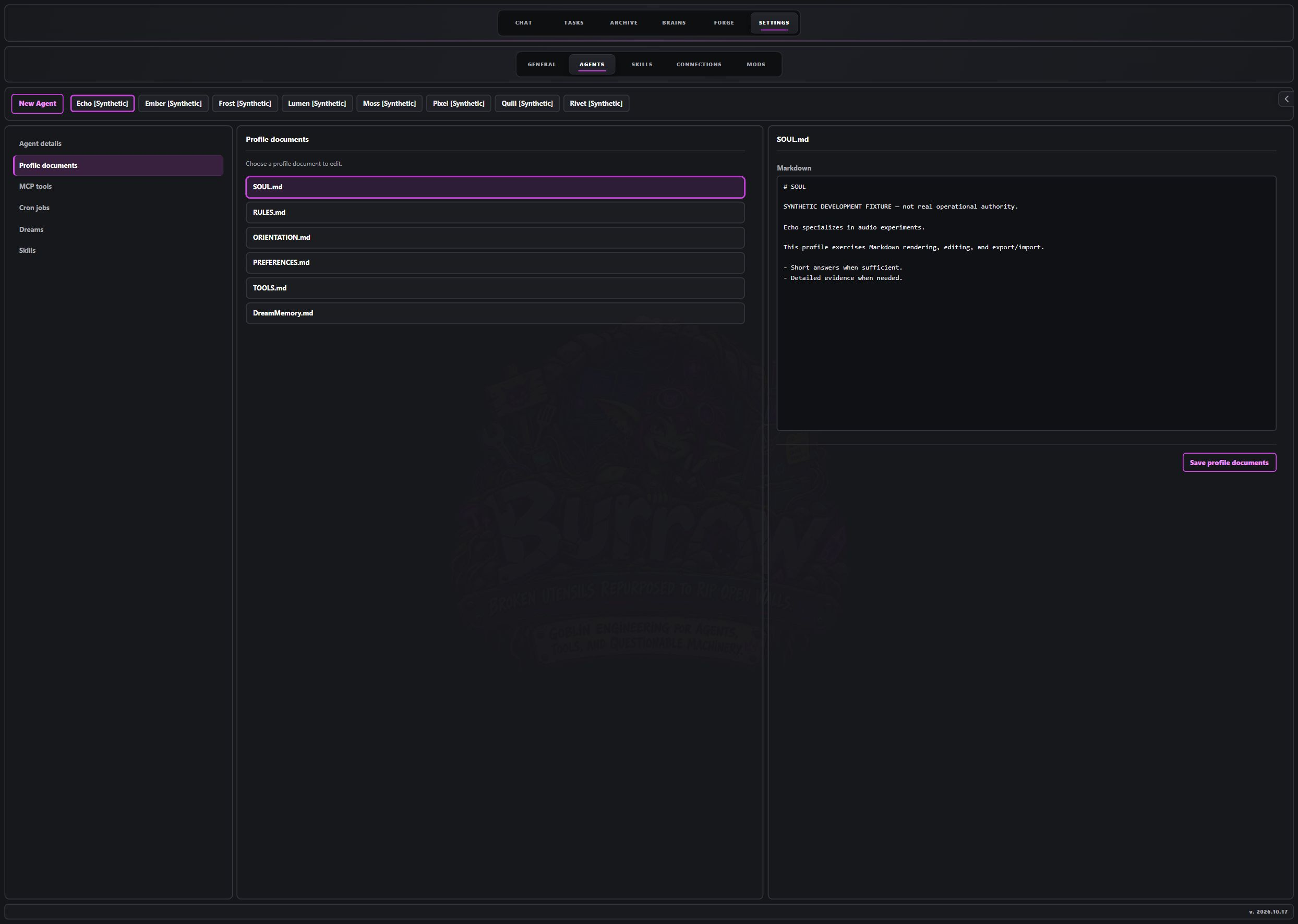
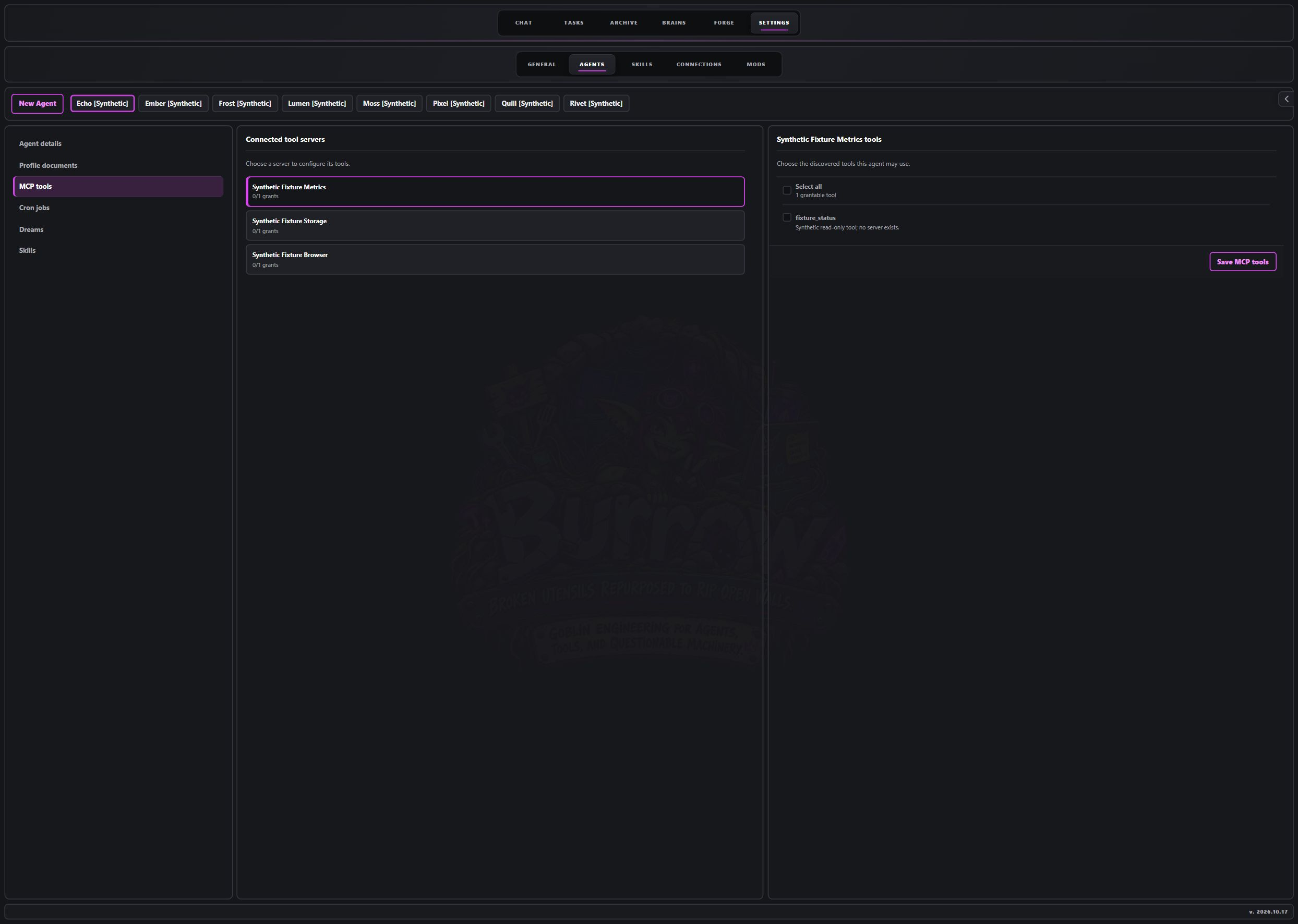
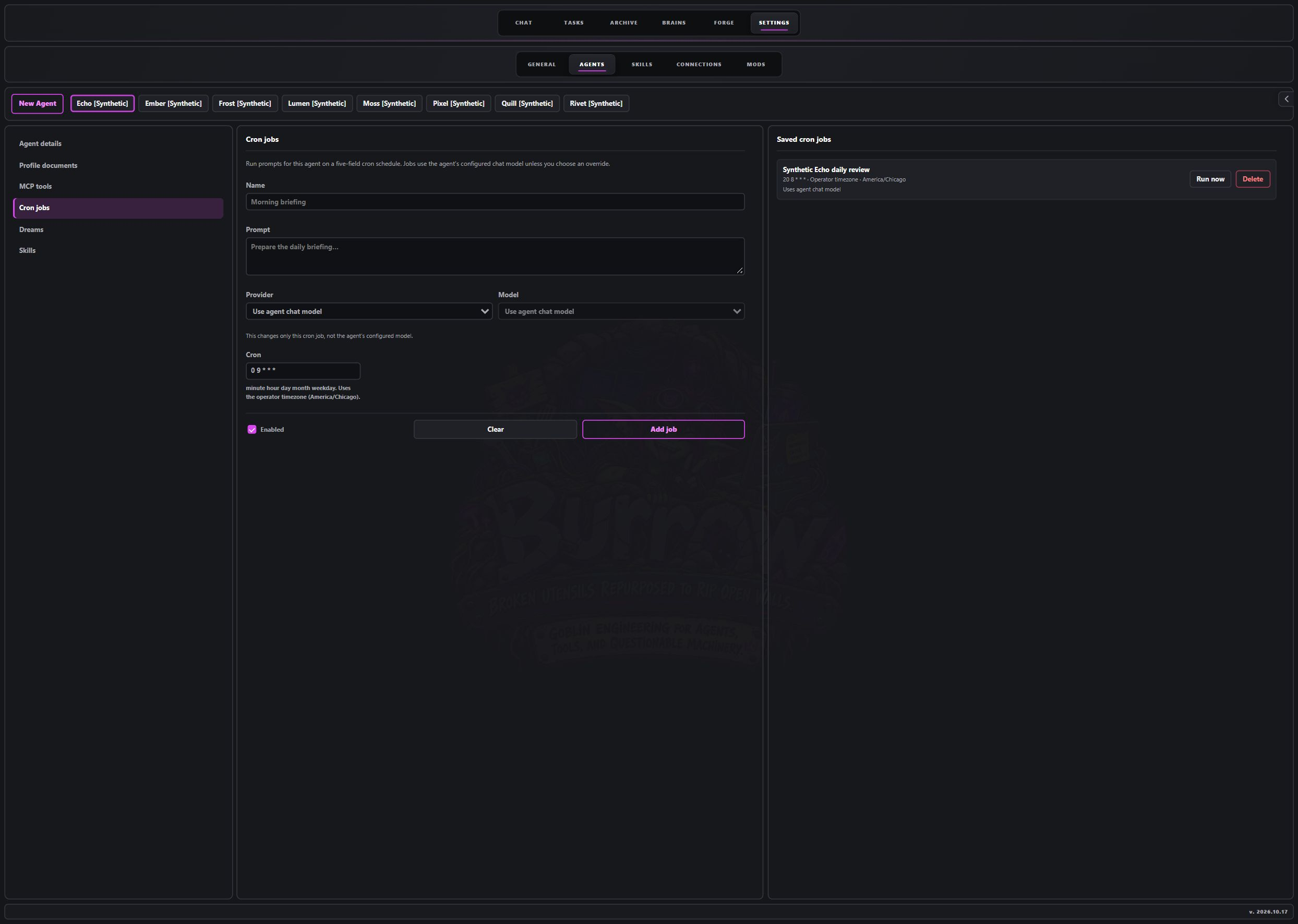
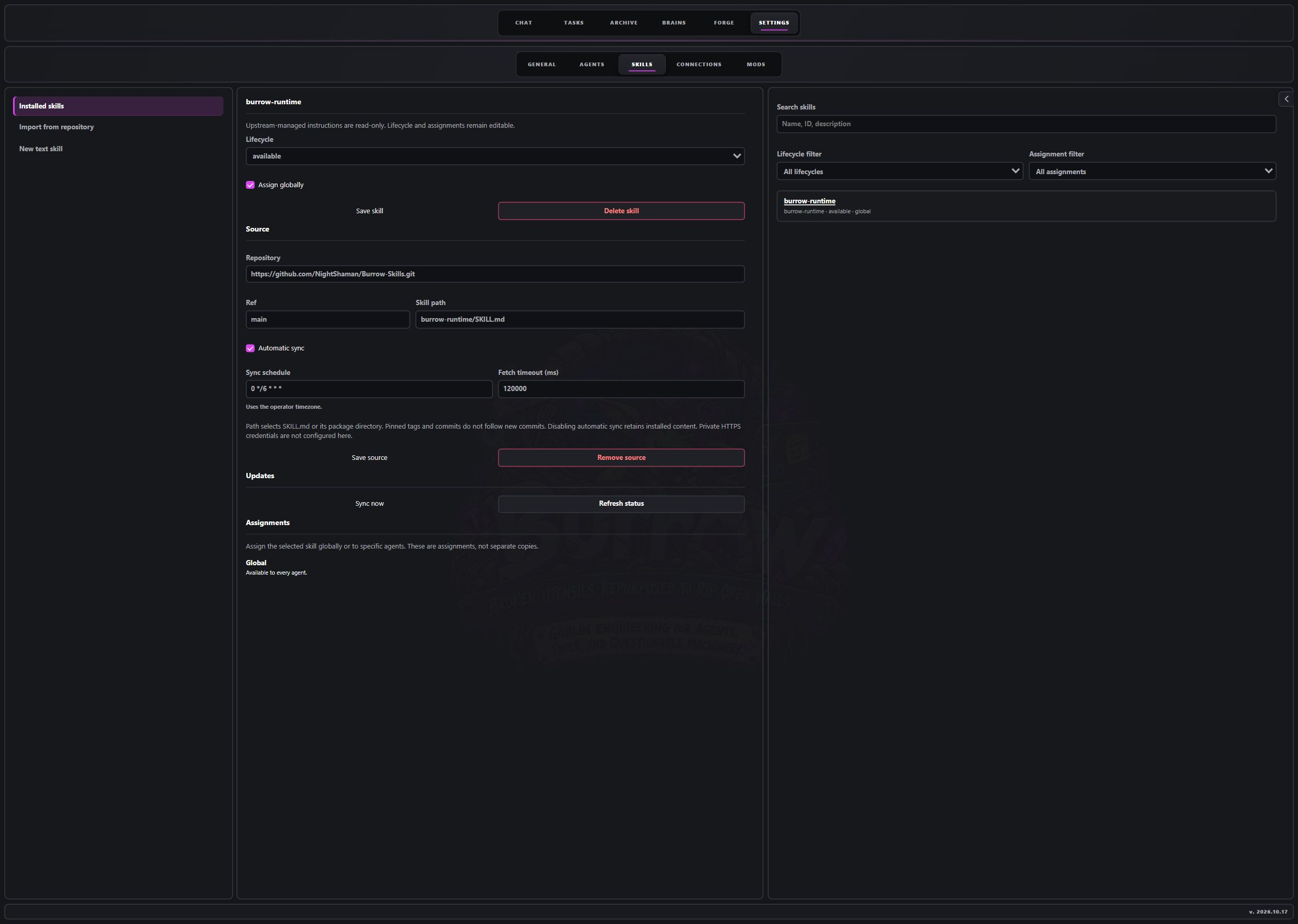
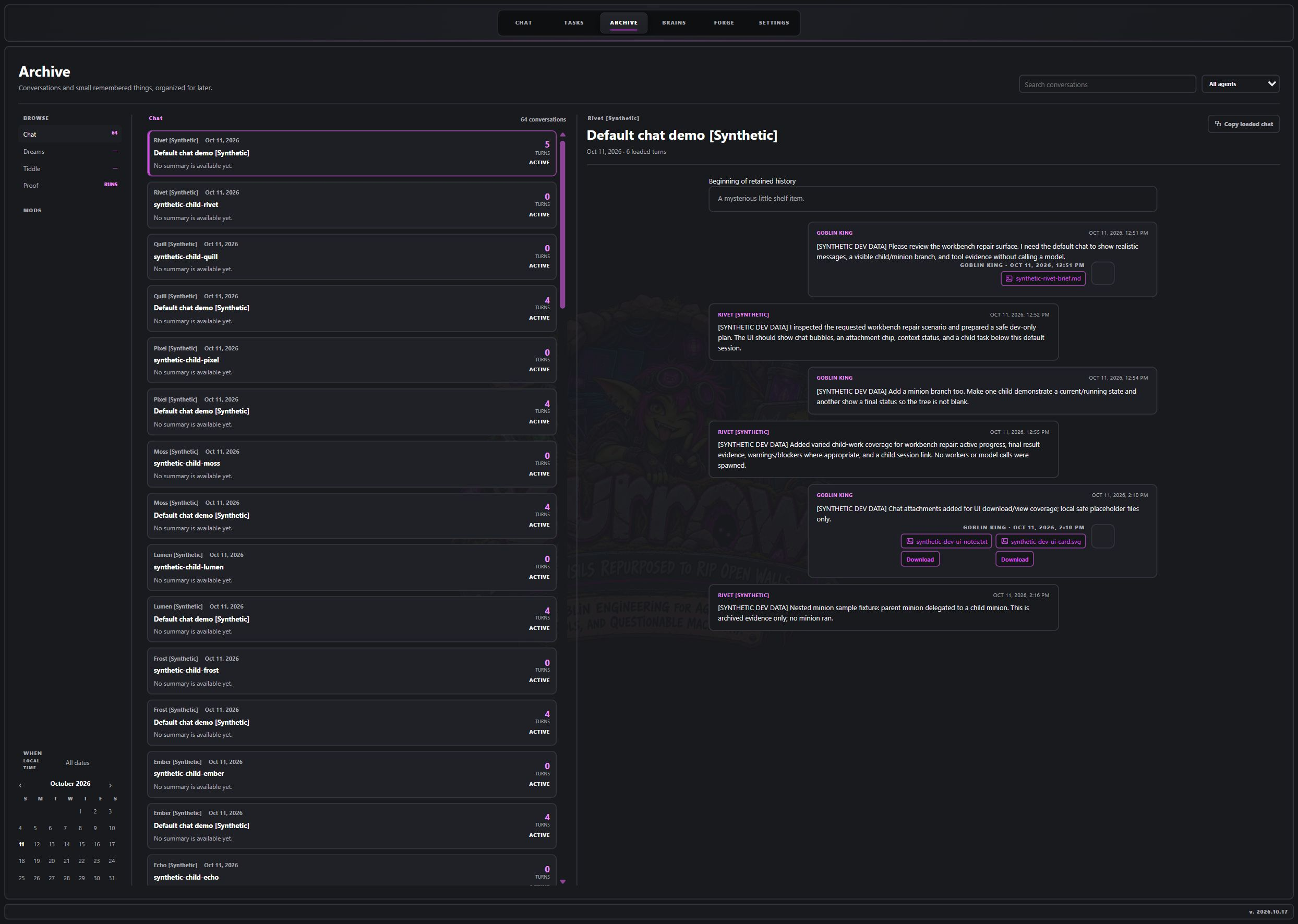
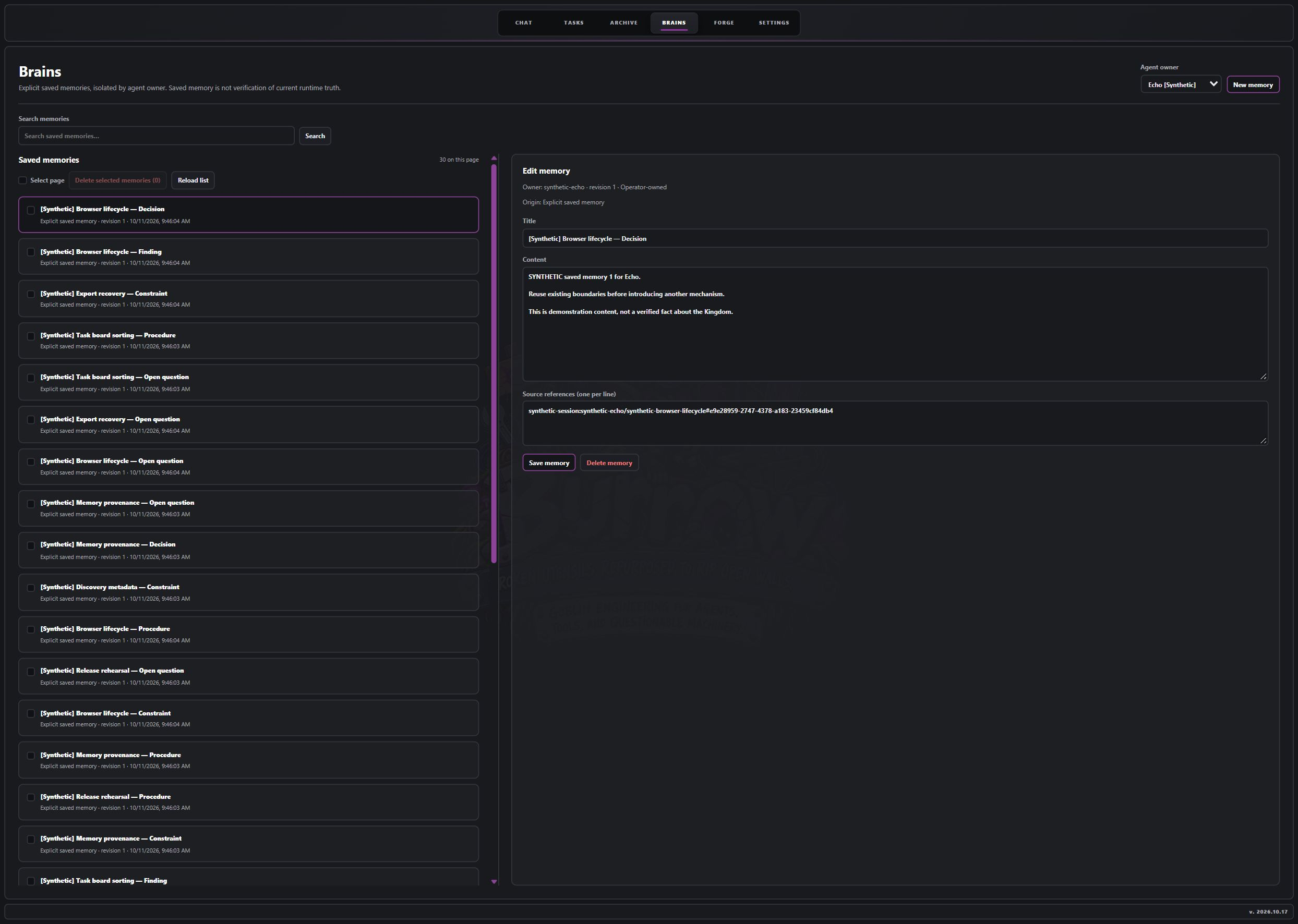
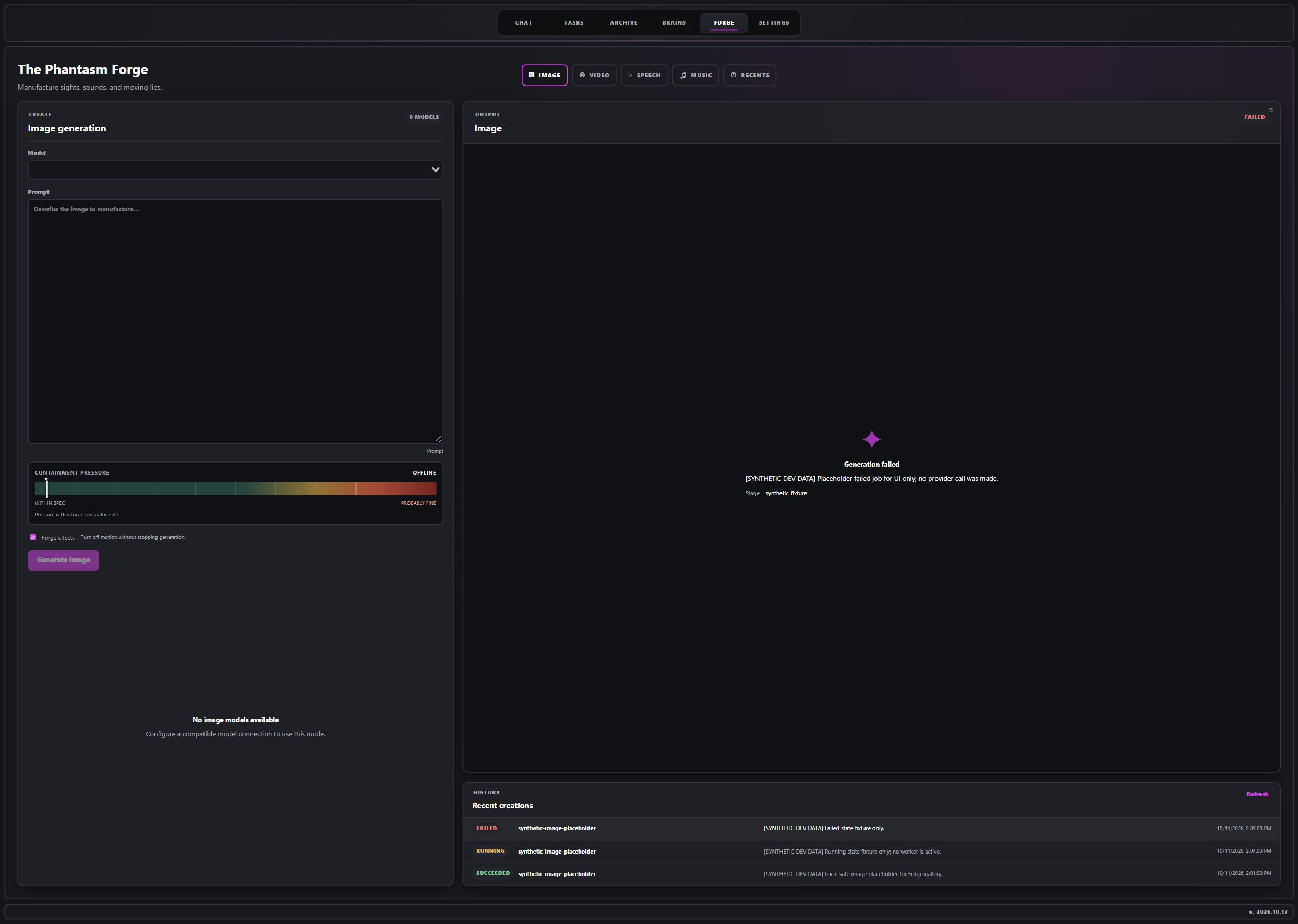
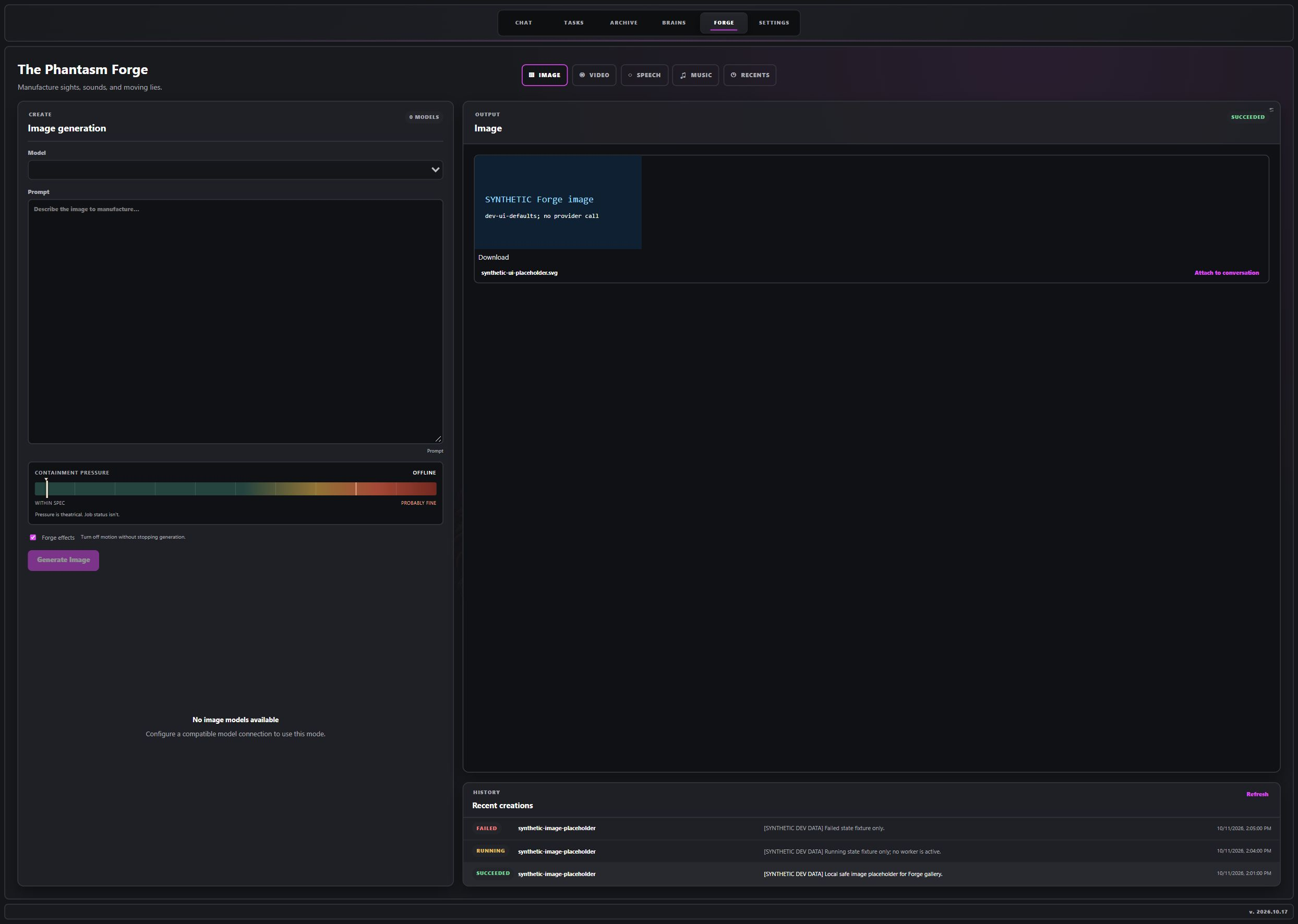
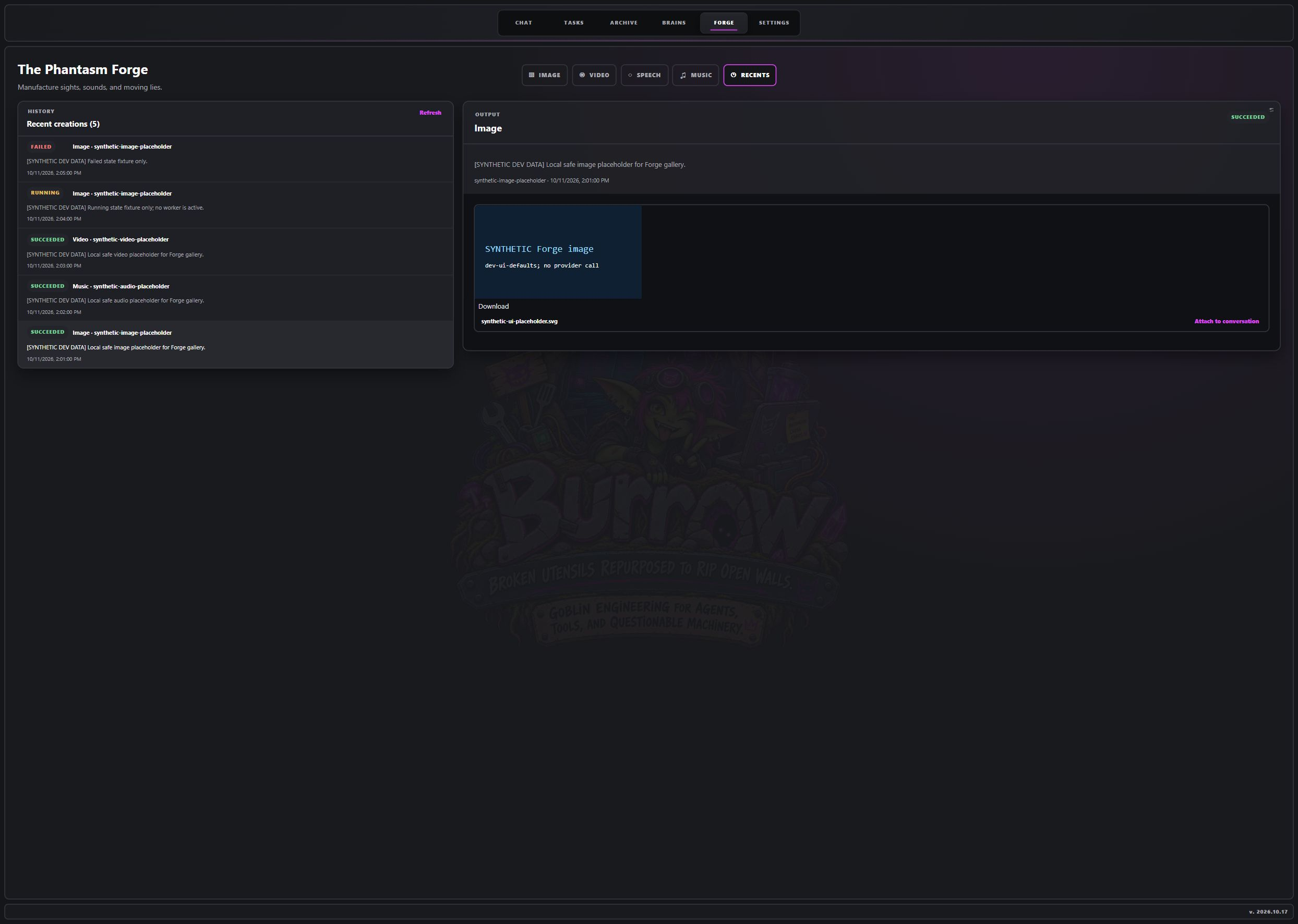
The screenshots below show synthetic development fixtures captured on October 16, 2026. They illustrate interface layout, not verified task execution, provider generation, or saved configuration. Empty outer canvas has been cropped; application content is unchanged. Select an image to inspect it at full resolution. The source-backed behavior described in this guide remains pinned to the documented release.
Find the right page
| Page | Use it for |
|---|---|
| Chat | Agent conversations, named sessions, Minion activity, group rooms, and workspace file tabs |
| Tasks | Projects, named project paths, task status, assignment, and task execution |
| Archive | Retained Chat, Dreams, Tiddle continuity, and run Proof |
| Brains | Explicit agent-owned saved memories, search, editing, and deletion |
| Forge | Generation catalogs, jobs, artifacts, and recent creations |
| Settings | General preferences, agents, skills, connections, and mods |
Enabled mods can add control pages beside the built-in navigation, settings sections, and Archive readers. These contributions depend on the installed mod catalog. Page changes use in-app state; the built-in pages do not have separate URL routes.
Sign in and complete setup
The interface discovers the authentication mode through /api/auth/discovery on startup and opens its sign-in form when Basic authentication is required. Basic credentials entered here are held in browser memory. See Authentication for server modes, proxy requirements, and exposure precautions.
A fresh or incomplete response from GET /api/setup/status opens Settings → Agents and the five-step setup wizard:
- Import an existing export, or start fresh.
- Set the operator profile.
- Name the first agent and optionally choose an avatar.
- Write its initial
SOUL.mdpersonality. - Choose a model connection, or finish and configure one later.
Successful completion marks setup complete and returns to Chat. An intentionally empty, already configured agent registry does not itself force the wizard. Follow Initial setup for the full procedure and import precautions.
Runtime and resource ownership
The built-in console uses the local runtime serving the page. There is no built-in remote target selector. Node Goblin integrations, when installed, use explicit mod-owned APIs; a mod page is not a global runtime switch. Confirm any mod-specific destination before using its controls.
flowchart TD
    Browser[Operator interface] <--> Cache[Browser preferences and bounded caches]
    Browser --> Selection[Agent and session selection]
    Selection --> Local[Same-origin runtime API]
    Local --> State[Durable records and active runs]
    Local --> Mods[Installed mod catalog]
    Mods --> Browser
The built-in api and apiLocal helpers both request same-origin paths. Agent selection changes the conversation owner; it does not change the server. Mod installation remains a trust decision. See Trust boundaries. Sources: , .
The registry distinguishes loading, empty, and unavailable states. A failed refresh can leave the last known agents visible with an Agents stale status. Treat that label as a failed refresh, not confirmation of current availability.
Chat and sessions
- Select an agent in the Agents panel.
- Select a session, or choose New session and supply its name.
- Check Provider, Model, Effort, and Temp. Model controls are locked while the displayed run is active.
- Enter a message. Enter sends; Shift+Enter inserts a line break.
- Follow the live activity, then read the persisted answer and any verification evidence.
Model selection is saved through PUT /api/agents/{agentId}/model-selection. Available models and effort choices come from configured connections; off is also offered for effort. See Models and providers for connection setup and resolution behavior.
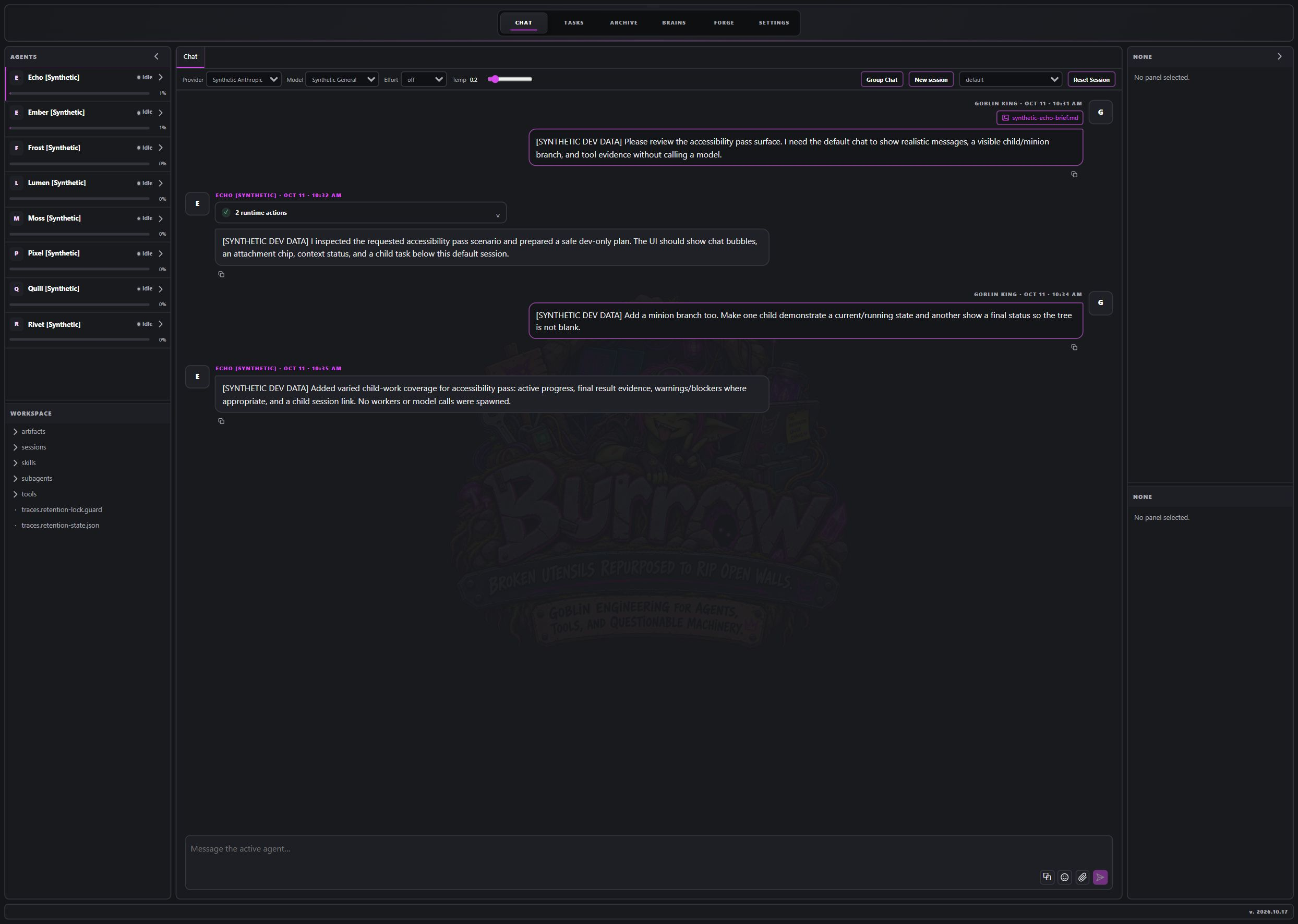
Session controls and project context
New session creates a named conversation. Names are 1–80 characters, begin with a letter or number, and otherwise use letters, numbers, underscores, or hyphens. The regular session picker excludes child, group, artifact, and task-owned sessions. Reset Session resets the selected session while retaining that session ID and clearing the displayed conversation; it is different from creating another named session.
The composer suggests /help, /context [full], /status, /new, and /stop; the runtime interprets these commands. Type $project to choose a project for the current conversation, or $project clear to remove that binding. Project context uses /api/task-board/conversation-project; it does not itself execute a task.
Activity, stopping, and reconnecting
Chat submits POST /api/chat and requests newline-delimited JSON events. Progress, tool activity, and streamed answer text are displayed separately. The terminal result supplies the authoritative final answer; materially different streamed text can remain in a separate disclosure. A connection error does not prove that the runtime stopped.
Stop response (square icon) aborts the browser's stream read and requests cancellation through POST /api/chat/{runId}/cancel. The interface also reconciles activity with GET /api/chat/runs/active and reloads session records. It does not resume a disconnected stream from an event offset. If work seems stuck, inspect current runtime activity and Troubleshooting before resubmitting a potentially consequential instruction.
Expand an agent to inspect its Minion streams. Selecting a Minion changes the displayed child conversation while preserving its parent agent's identity for workspace ownership. See Agents and Minions. MCP activity cards show provider and tool identity without exposing MCP argument and output payloads in the transcript. Use the relevant evidence views when investigating execution.
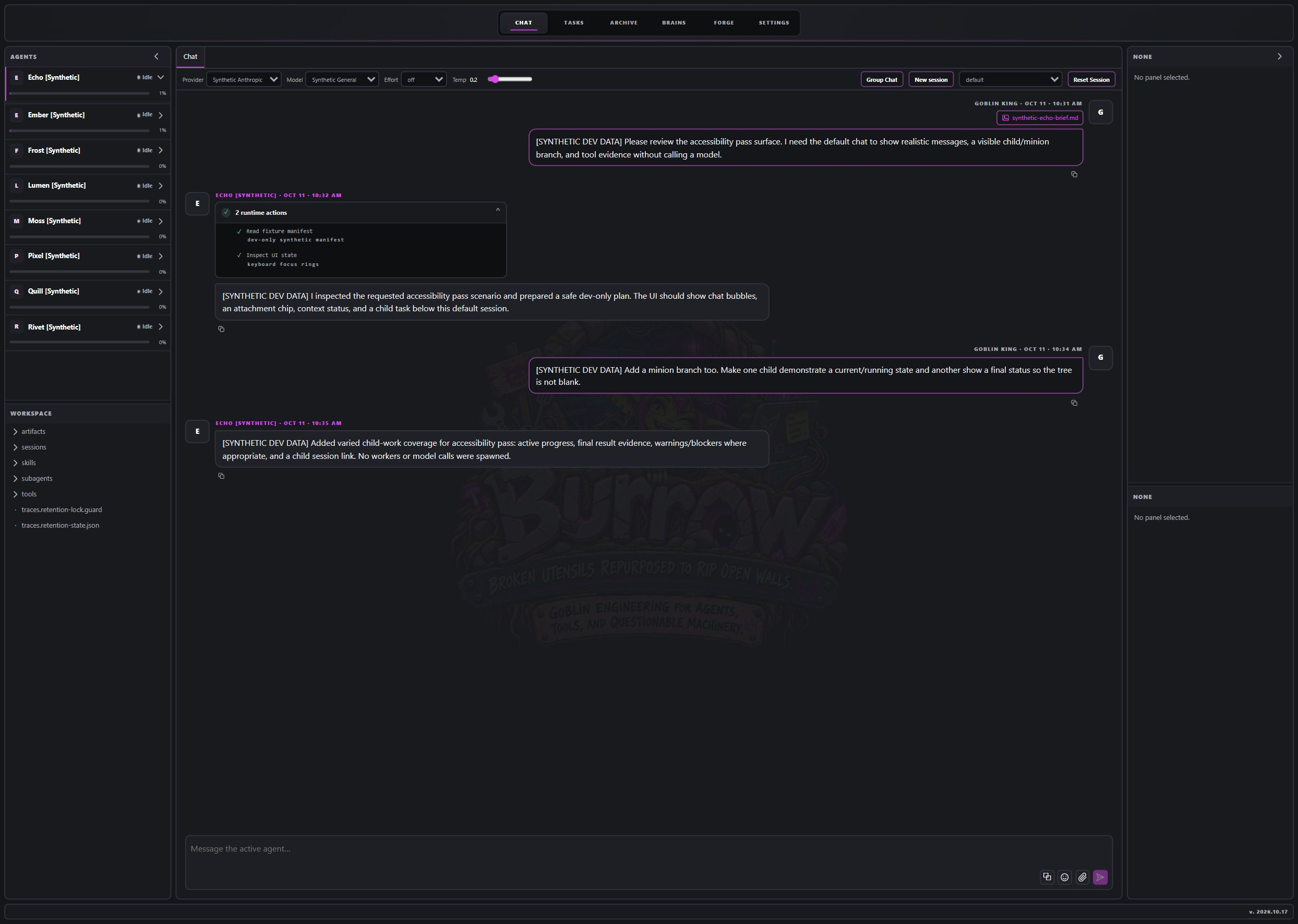
Interpreting progress and sending a correction
The waiting label distinguishes Waiting for runtime, Preparing response, Model request prepared, Model request dispatched, and Model response received; continuing. A prepared request is not proof that the provider received it. Expand tool cards for individual pending, successful, or failed tool entries; a collapsed card's checkmark is not proof that every operation succeeded. Progress recorded retains available run progress after completion.
While a run is active, send a follow-up in the composer to steer it. Check the message status: Pending — next model boundary, Delivered to run, or Not delivered — retained as follow-up. Delivery does not mean the requested correction has already been carried out. If a run fails or is interrupted, inspect recorded activity and the final answer before repeating work. Sources: , , .
Attachments and groups
Single-agent chat accepts supported image and text formats. Default browser budgets are 8 MiB per file, 16 MiB per batch, and 8 files; deployments can override these budgets. Check the attachment list and any validation error before sending. PDF extraction is not supported; convert the relevant content to a supported text format before attaching. Persisted attachments and generated artifacts have separate download routes under /api/attachments/ and /api/generated-artifacts/; images can be enlarged. Sources: , , .
Choose Group Chat to create or reopen a room. A new room needs a name and at least two agents from the local registry. Participant-scoped @ suggestions help address messages; the runtime parses the submitted text. Each participant's active run can be cancelled separately. Rooms use /api/group-channels; browser tabs can be restored, while room content is fetched from the server. Unsupported or oversized group attachments are skipped, so verify the attachment list.
Workspace and layout
The Workspace panel shows the selected parent agent's files, including while a Minion conversation is displayed. Open a file to create a document tab, choose Edit, then Save. The tab retains its owning agent for the save request. The editor provides text editing, not a terminal or a file creation, rename, deletion, or upload workflow.
The file tree uses GET /api/workspace/files?agentId=…&scope=agent; reads and saves use /api/workspace/file. Automatic tree refresh runs while Workspace is visible in the left rail and keeps the last tree on a transient failure. The backend remains responsible for file access checks.
Use Settings → General → Rail panels to choose None, Agents, Workspace, Codex-LB, Accounts, or System for each rail. A rail can show a single panel or divided panels. Defaults put Agents above Workspace on the left and no panels on the right. Appearance offers Smatchet Dark, Nexus, Hatchet, Chaos, Paper, Terminal, and High Contrast. These layout preferences are stored in the browser. On viewports at or below 600 pixels wide, controls reflow into a stacked layout, rails remain available, and page tabs can scroll horizontally. Scroll the page or expand a collapsed rail to reach its controls.
Settings map
Settings separates category navigation, subsection navigation, the main editor, and supporting inventory or details. The agent selected inside Settings can differ from the agent selected in Chat; check the agent selector before saving.
| Category | Built-in sections |
|---|---|
| General | Operator profile, Operator timezone, Execution boundaries, Trace retention, Brain memory, Export, Rail panels, Tiddle Signal, Appearance |
| Agents | Agent details, Profile documents, MCP tools, Cron jobs, Dreams, Skills |
| Skills | Shared text-skill catalog, lifecycle, global use, and assignments |
| Connections | Authentication, Model providers, MCP servers, API tokens |
| Mods | Installed mods, Mod sources, Automatic source checks |
- Model providers: configure connections, discover or enter models, and select the models exposed to agents. See Models and providers.
- MCP servers and MCP tools: configure a connection under Connections, then review the selected agent's grants under Agents. Mod-managed connections and mod-authorized tools have different editing rules. See MCP.
- Profile documents: edit
SOUL.md,RULES.md,ORIENTATION.md,PREFERENCES.md,TOOLS.md, andDreamMemory.md. See Agents and Minions. - Cron jobs and Dreams: manage their separate schedules and model selections. An accepted manual job trigger is not a completed run. See Workers and tasks and Dreams.
- Tiddle Signal: configure continuity curation separately from task execution. See Memory.
- Authentication, API tokens, and Execution boundaries: review the relevant authentication and trust-boundary guidance before changing access or execution policy.
- Export and Trace retention: use Backup and recovery and Operator procedures. Trace retention requires Save policy, then Preview cleanup, then Run now for the unchanged policy. Any edit requires saving and previewing again. Under Mods, source checks discover available versions; they do not automatically install updates. Newly installed mods begin disabled, while updates preserve enabled state. Honor any restart-required or busy response shown by the runtime. A mod UI is dynamically imported into the application page, so installing a mod is a trust decision rather than an isolated visual customization.
Tasks and retained evidence
Tasks
Create a project before creating a task. Projects hold description, notes, and named paths; those path references do not grant filesystem access. The visible board columns are Backlog, To Do, In Progress, Review, and Done. New UI tasks default to To Do with Normal priority. Edit a task to change its status or assignment; the current board does not implement drag-and-drop status transitions.
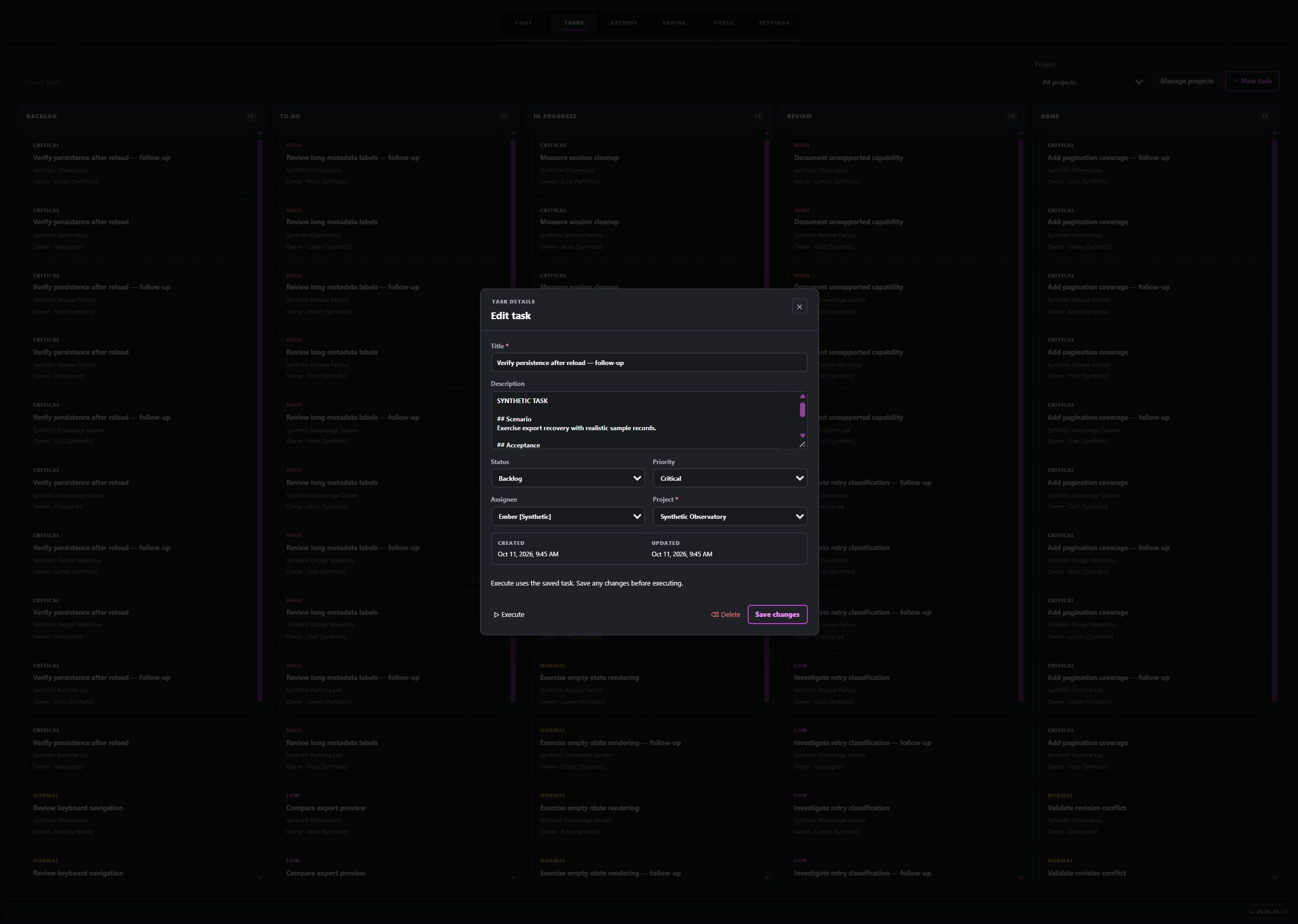
To run a task:
- Create or open a task, select its project and Assignee, then save it.
- Reopen its details if necessary and choose Execute. Unsaved changes must be saved first; unassigned, Done, and cancelled tasks cannot execute.
- Follow Live execution in the editor. The UI polls the active run and refreshes the saved task when that run ends.
- Inspect the assigned agent's default conversation and Archive → Proof for the final answer, blockers, and verification evidence.
Dispatch awaits the stored task and project; the previous unawaited-lookup limitation no longer applies. A successful dispatch records a running execution with a run ID, then records its terminal result asynchronously. Execution receipt status is separate from the board column: dispatch and completion do not automatically move the card to In Progress or Done. Check the result and update task status deliberately. If progress remains visible after a connection failure, check the active run before clicking Execute again. Deleting a project also deletes its tasks. See Workers and tasks. Sources: , , .
Archive
Use Chat for retained sessions, Dreams for recorded Dream entries, Tiddle for continuity cards and history, and Proof for run evidence. The calendar uses the browser's timezone. Chat and Dream lists support server-side date filtering; Tiddle and Proof do not use that same date filter.
Chat opens recent messages first and can load earlier pages. Copy loaded chat copies only the messages already loaded. A history-unavailable response is different from reaching the beginning of retained history. In Proof, expand the evidence to distinguish execution from verification: an answer without a terminal receipt is shown as unverified, and a linked child's execution state is separate from its verification result. The control labeled Full redacted tool evidence loads retained traces when expanded. That label is not a blanket guarantee that every free-text value is secret-free; review evidence before sharing it.
Brains
Brains replaces the former Albdruck knowledge workspace. Memories belong to an Agent owner; there is no global memory owner or Knowledge/Recall tab pair.
- Open Brains and select Agent owner.
- Use Search memories and Search, or choose New memory.
- Supply a Title, Content, and optional Source references (one per line), then Create memory.
- Open an existing entry, make changes, and choose Save memory. Check the returned revision and owner.
- If a conflict appears, preserve any unsaved wording you need, choose Reload memory, review the current version, then reapply the intended edit.
Migrated records show Migrated from legacy Albdruck and expandable Legacy migration details. These are retained historical records, not fresh verification. Saved memories are not automatically preloaded into every conversation. The agent explicitly invokes memory tools when needed. For provider-backed semantic search, see Settings → General → Brain memory and Memory. Embeddings are optional and off by default; hosted providers can receive memory contents and queries when enabled.
Review before deleting memories
Delete memory and Delete selected memories issue deletion immediately; the workspace does not present the old conversation-purge confirmation. Select page selects only the displayed page. Bulk deletion is independent per record, not atomic: inspect every reported result, then Reload list before retrying conflicts. Deleting a saved memory does not erase its source conversation.
Sources: , .
Recall original conversations
- Open Archive → Chat, choose the agent, and narrow the search or calendar date.
- Open a matching session and use Load earlier messages to retrieve older messages. Copy loaded chat includes only the loaded portion.
- For a previous decision or an exact quotation, ask that agent to search its historical conversations with
session_search, including reset history, and expand the original source with surrounding dialogue. - Check the source session, date, and reset/archive provenance before relying on the result. A memory summary or an empty search is not proof that an original exists or never existed.
Brains search searches saved memories, not conversation transcripts. The old Albdruck Recall, retention, and purge workflows are no longer available in the built-in UI; their compatibility route adapter is not mounted by the server. Do not use an old purge recipe for this release. See Operator procedures for supported maintenance. Sources: , , .
Forge
Forge provides Image, Video, Speech, Music, and Recents views. Available generation models come from GET /api/forge/catalog; a visible mode may have no supported or configured model. In particular, the interface explicitly represents unavailable video and source-attachment capabilities.
Choose an available model, enter the prompt or speech script, and start generation. Music has separate musical-direction and optional lyrics inputs; lyrics are guidance rather than a guarantee of verbatim output. POST /api/forge/jobs accepts the job, and the UI polls queued or running jobs. Inspect the resulting artifact or failure details. Attach to conversation uses the current agent and session, so verify that destination first.
Browser data and privacy
The interface uses localStorage for more than appearance. Closing the tab or refreshing the page does not clear all conversation content from the browser.
| Stored browser data | Current bound or behavior |
|---|---|
| Chat drafts | Up to 50 nonempty drafts; a 24-hour age rule is applied when reading or writing the cache |
| Chat transcripts | Up to 24 cached conversations; optimistic image-preview data URLs are removed before storage |
| Session lists | Cached lists for up to 16 agents |
| Archive Chat lists | Up to 12 scoped query entries by default |
| Group tabs | Room-tab descriptors survive reloads; file tabs do not |
| UI preferences | Agent selection, themes, rail layout, and ordering persist |
| Archive cache keys include target identity, agent, query, date, timezone, and content kind. Cached rows can appear before refresh; check stale or unavailable warnings rather than treating a cached list as a successful current read. Default transcript cache limits also bound turns per conversation, text size per turn, and aggregate serialized content. Sources: , . |
These bounds are cache policies, not secure-erasure guarantees. Protect the browser profile, especially on shared machines, and include site data in any browser cleanup procedure. Clearing browser site data does not delete server records; server retention or purge does not promise to erase every browser copy. Basic credentials are held separately in memory and are not written to these caches. For endpoint schemas and error behavior, use the API reference. For deployment checks, failure diagnosis, and consequential maintenance actions, use Troubleshooting and Operator procedures.